Adding chapters
For JormunTL 1.4.1
Chapter numbering, which novel it belongs to, the release queue, and the per-chapter access settings.
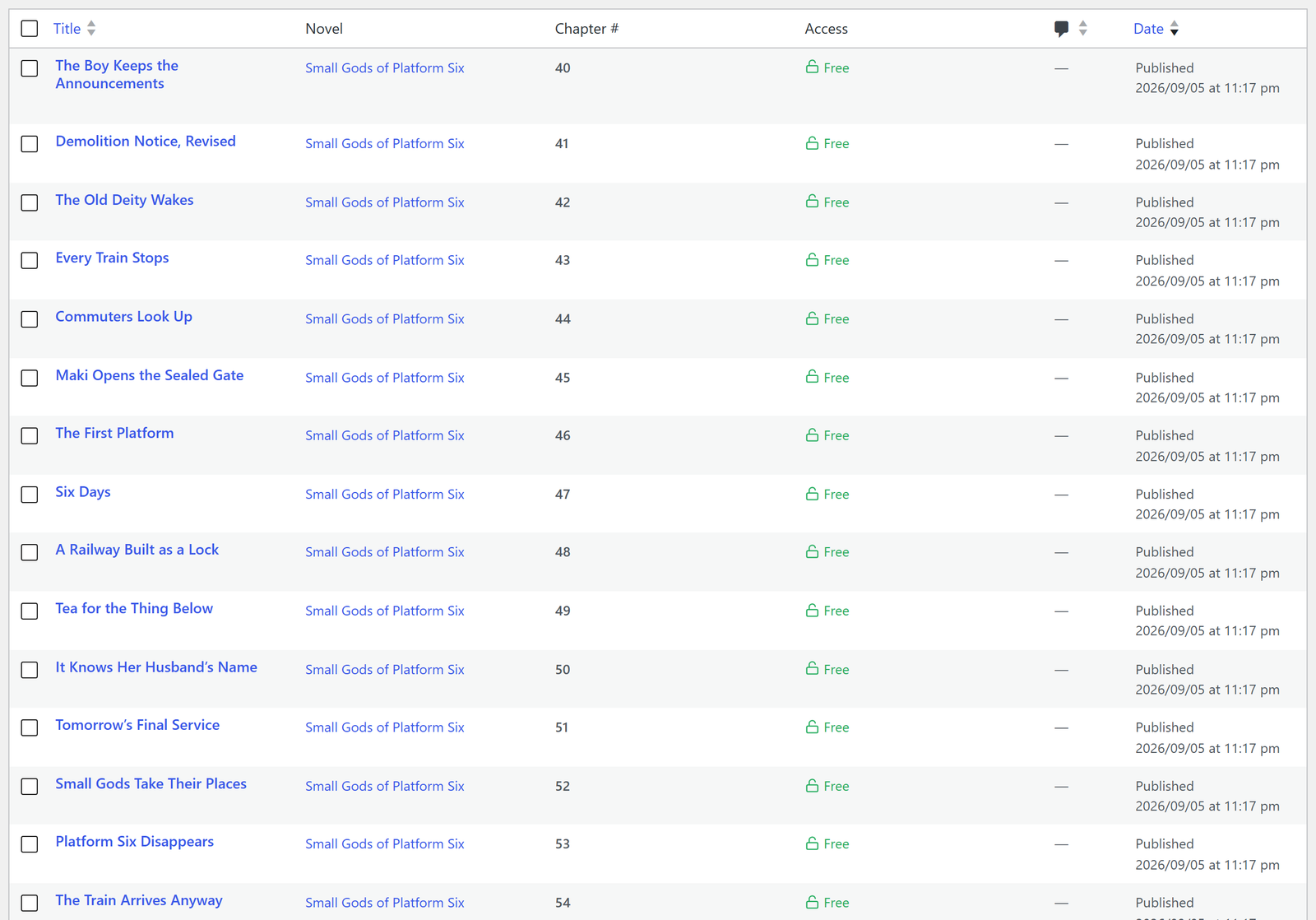
A chapter belongs to a novel and carries a number. Those two facts drive the table of contents, previous and next, the free opening range and every “latest chapters” list on the site.
Chapters live under Chapters in the sidebar. Chapters ▸ Add New starts one, and the novel’s own screen can start one already attached.
Chapter Details
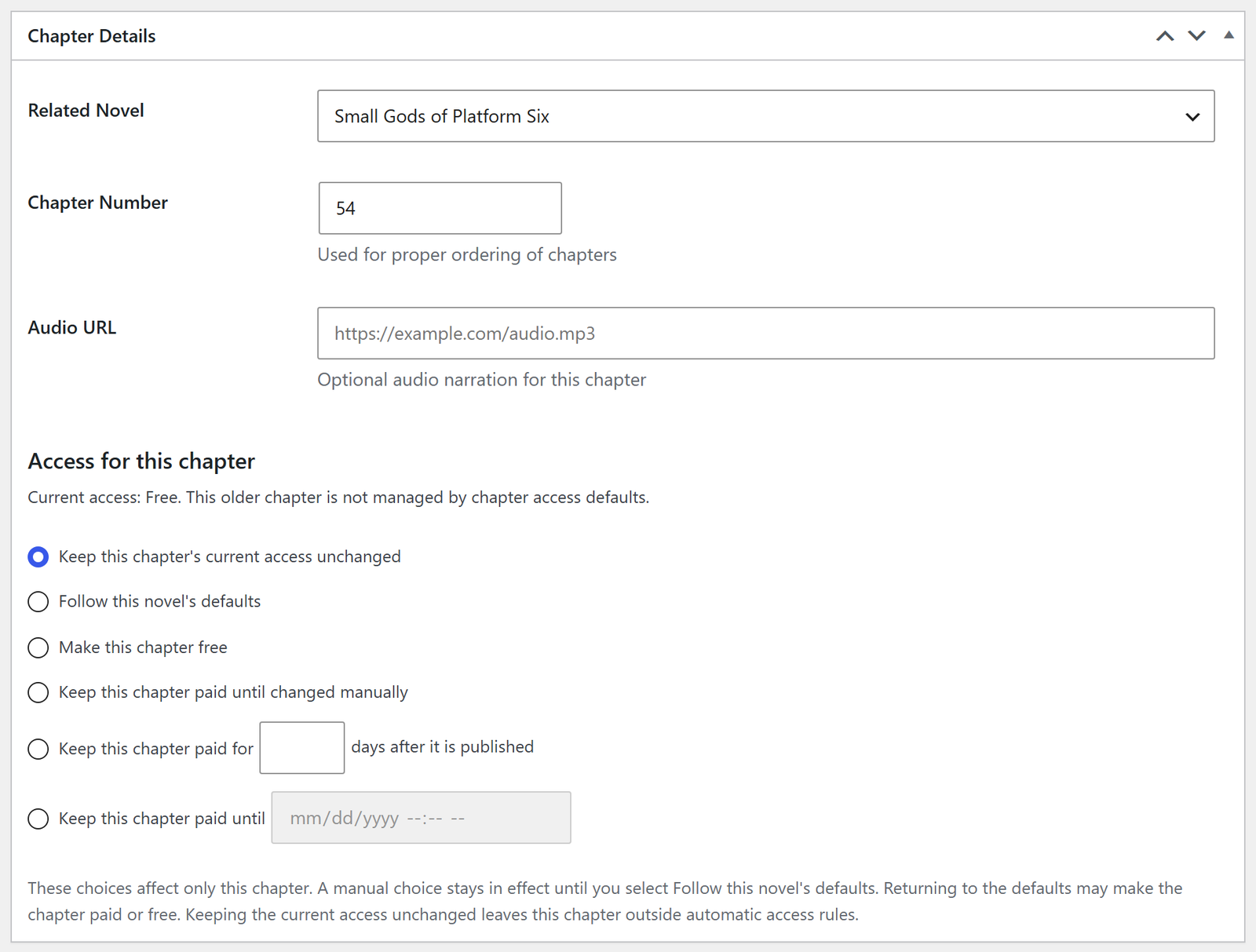
Novel is which novel this belongs to. A chapter without one is invisible: it appears in no table of contents and has no previous or next.
Chapter number is what orders everything. Numbers do not have to be whole,
so 10.5 sits between ten and eleven, which is what side stories and interludes
are for.
Audio narration takes a URL, for sites that publish audio alongside the text.
Access on this box overrides both the novel and the site default, and a custom price overrides the site’s cost per chapter. A manual setting here beats everything above it, which is deliberate and also the first thing to check when one chapter behaves differently from its neighbours.
System windows, notifications and code
For stories where a System talks: level-ups, status sheets, quests, warnings, a broadcast to every player. The editor toolbar has a System menu, after the quote button. Put the cursor in a paragraph, or select several, and pick a preset: Window, Level up, Status, Skill, Quest, Item, Warning or World announcement. The paragraph becomes a window, drawn in the editor the way the reader will see it. Change the text afterwards as you like.
A preset only chooses a title, a colour and a shape. Under the same menu, Tone picks the colour (blue, red, gold, green, purple, silver, or the site default) and Alignment chooses centred, left, or full width. Window title turns the line the cursor is on into the window’s header, replacing the preset’s. Remove window puts the text back as plain paragraphs.
Status and Quest lay out lines written as Label: value in two columns,
one line per fact. A line with no colon stays a sentence, so a status sheet can
still carry a note.
Notification is the System’s voice without a box, for the bracketed one-liners that come five in a row. Each is its own line, so five stay five.
Code block is for pasted code or terminal text. It wraps and follows the reader’s font size instead of running off the side of a phone.
How the windows look, Screen (black glass, glowing text) or Card (quiet, in the theme’s colours), is a site setting under Theme Options ▸ Content & Features ▸ Chapter Blocks, and a novel can choose its own under Chapter formatting on its edit screen. That box also has Quotes are system windows: for a novel already written with the quote button for system text, tick it once and every blockquote in its chapters is drawn as a window, with no chapter re-edited.
Footnotes
The Note button inserts [note]Your note here[/note] at the cursor. Replace
the placeholder with the note. On the page it becomes a small numbered mark;
hovering or tapping it shows the note in place (on a phone it unfolds under the
paragraph), and every note is listed at the end of the chapter with a link back
to its mark. Notes pasted from Google Docs or Word keep their own links and get
the same look.
Where notes show, tooltip and list, list only, or tooltip only, and the heading above the list (“Notes”, or “Translator’s notes”) are set under Chapter Blocks, and a novel can override them in Chapter formatting.
Release queue
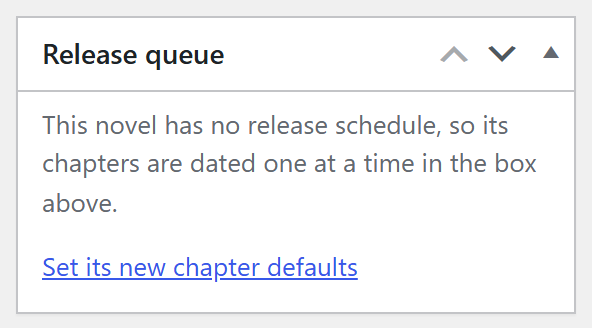
Chapters use WordPress scheduling, and this box is where a chapter sits in the run-up to going out.
A scheduled chapter is invisible until its date, paid or not: it is not on the novel page and nobody can buy it. If you use the timed access rule, its paid period starts from that publication time rather than from when you wrote it, so chapters published in the same batch have countdowns that end together.
To sell early access (read it now for coins, free on its date), set the novel’s access rule to Sell early access to scheduled chapters and then schedule chapters as you always do. Each one is listed and locked as soon as it is scheduled, and opens for everybody when it publishes. See chapter access.
Without that rule, a scheduled chapter you make paid by hand is still hidden until its date, so scheduling for the 23rd and paying until the 23rd means nobody can buy it at all. The access box on the chapter says so when you set one up that way.
Search & Share Description
The same box as on a novel: what search engines and social cards show. Left empty, the chapter’s opening is used.
Doing this in bulk
Do not paste four hundred chapters one at a time. If they are already in .epub files, see importing an ePub. If they are on another WordPress site, see moving an existing site.
Something here wrong or missing? jormundevtl@gmail.com
Privacy ·