Payment gateways
For JormunTL 1.4.1
Stripe, PayPal and Ko-fi: where the keys go, what a webhook is for, and how to prove one actually works before a reader tries it.
Three cards, one per gateway, at Monetization ▸ Settings ▸ Payment Gateways.
Each one is off until you switch it on, and folds its fields away while it is off, so the screen stays short.
The coloured line at the top of each card is its status, worked out from what you have actually saved rather than from the switch. It will tell you “keys set”, or that a key is missing, before you find out from a reader.
You do not need all three. Most sites run Stripe, or Ko-fi, or both.
Stripe
Credit cards. The usual first choice.
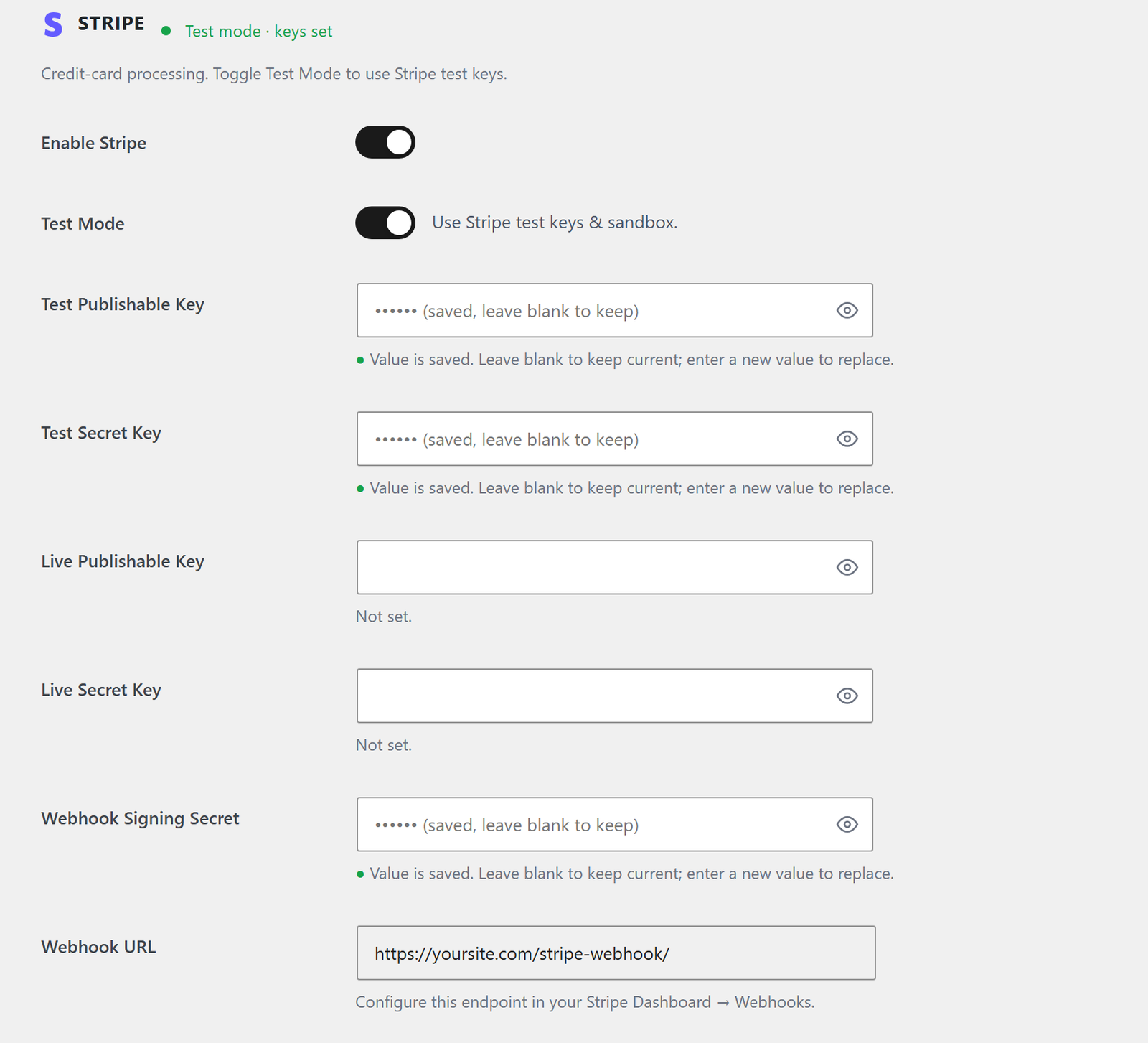
Test Mode decides which pair of keys is used. Leave it on while you are setting up. There are four key fields, not two, so your live keys can already be in place while you are still testing.
Copy from your Stripe dashboard:
- Publishable key and Secret key, from Developers, API keys. Take the test pair first.
- Add a webhook endpoint pointing at the Webhook URL shown at the bottom of this card, then copy the Signing secret Stripe gives you into the field above it.
The webhook is how Stripe tells your site a payment succeeded. Without it the reader pays and no coins arrive: the money moves, the balance does not. This is the single most common way a gateway ends up half-working, which is why the webhook URL is printed on the screen ready to copy.
Secret fields always render blank, even when a value is saved, so nobody can read a key off your screen. The line underneath says whether one is stored. Leaving a secret field blank keeps what is there; typing in it replaces it.
Proving it works
With Test Mode on, buy your cheapest package from your own wallet page using the
card number 4242 4242 4242 4242, any future expiry, any CVC. The wallet shows
that card number on screen while test mode is on, so you do not have to go and
look it up.
Coins should appear in your balance within a second or two. If they do not, the webhook is wrong.
PayPal
PayPal Smart Buttons. Same shape as Stripe: a Sandbox Mode switch, a sandbox pair and a live pair of Client ID and Secret, a Webhook ID, and the webhook URL to register.
Credentials come from the PayPal Developer dashboard, not from your ordinary PayPal account settings.
Ko-fi
Ko-fi is different from the other two: it is a shop you already run, and JormunTL listens to it rather than charging anybody itself.
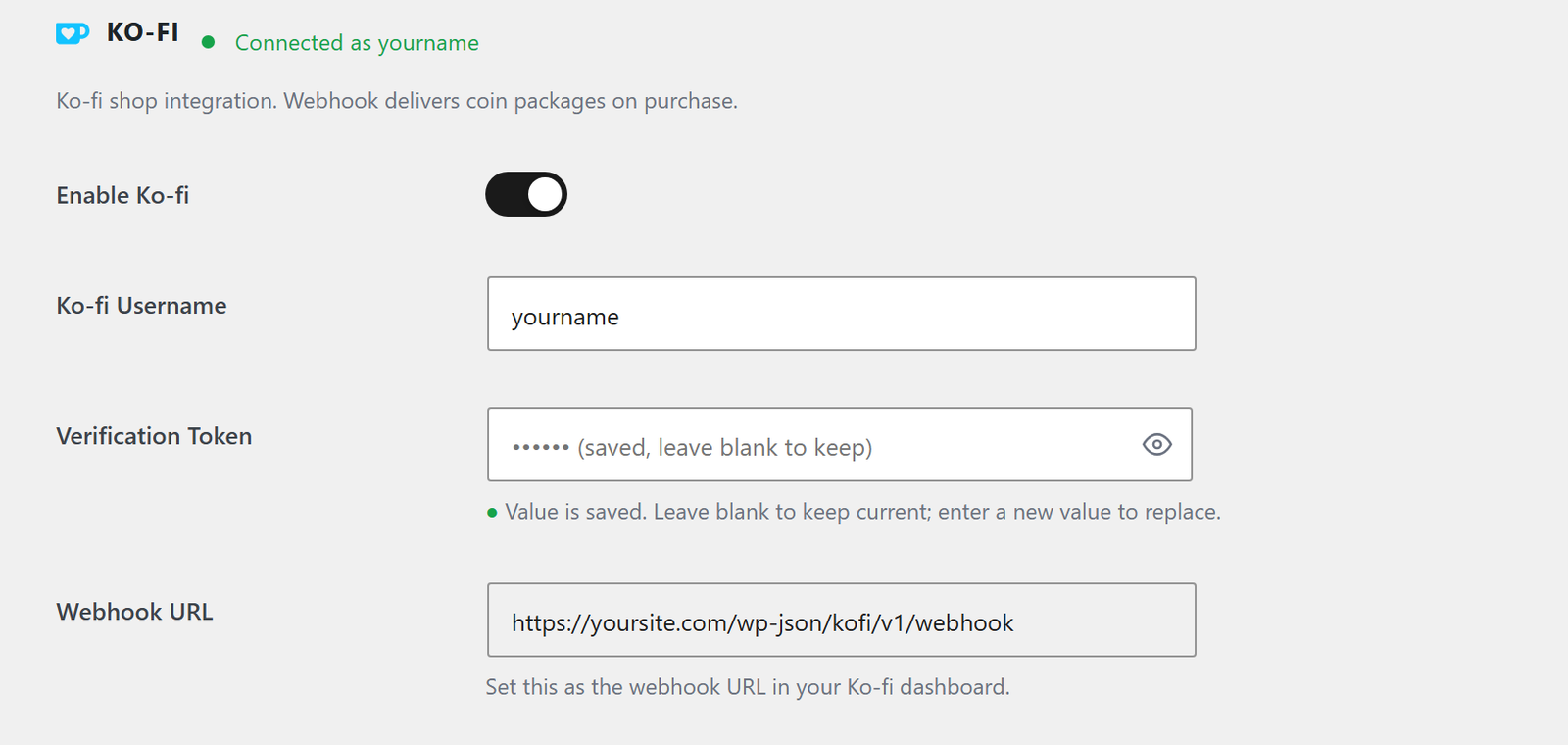
Ko-fi Username is the name in your Ko-fi address, ko-fi.com/thisbit.
Pasting the whole address is fine; only the name is kept. The card’s status
line shows the page readers will be sent to, so check it reads as you expect.
A package must be priced at $1.00 or more. Stripe will not charge under $0.50 and Ko-fi under $1, so a cheaper package is one nobody can buy: the table marks it “Not for sale” and the shop leaves it out until the price is raised.
Ko-fi’s payment page takes whole dollars only and does not pre-fill an amount, so a reader buying a $1.99 package is told to type 2. The site matches that figure back to the package and credits the full package.
Selling packages as Ko-fi shop items
If you would rather readers paid a fixed price with nothing to type, sell a package as a Ko-fi shop item. One item per package, on Ko-fi:
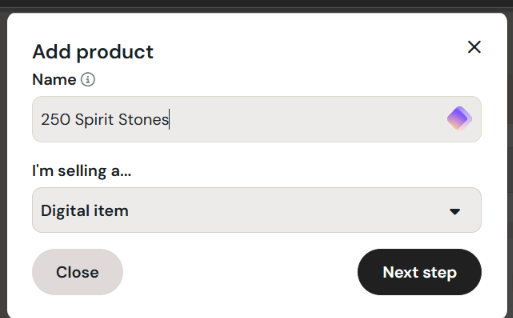
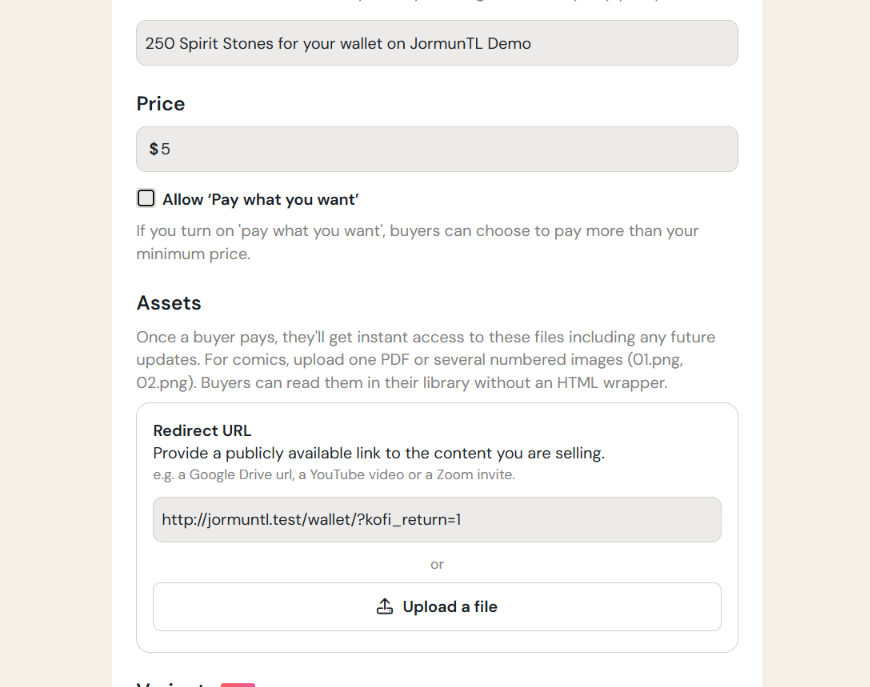
- Shop ▸ Add product. Name it what the reader gets, coins then your currency name: “250 Spirit Stones”. Keep Digital item. Next step.
- Description, for instance: “250 Spirit Stones added to your wallet on your site. Pay with the same email you use on the site and the coins arrive in your wallet within minutes. Paid from a different email? Tell the site owner and they will attach it to your account.” For the preview image, use the package’s own picture, the one the wallet shows for it.
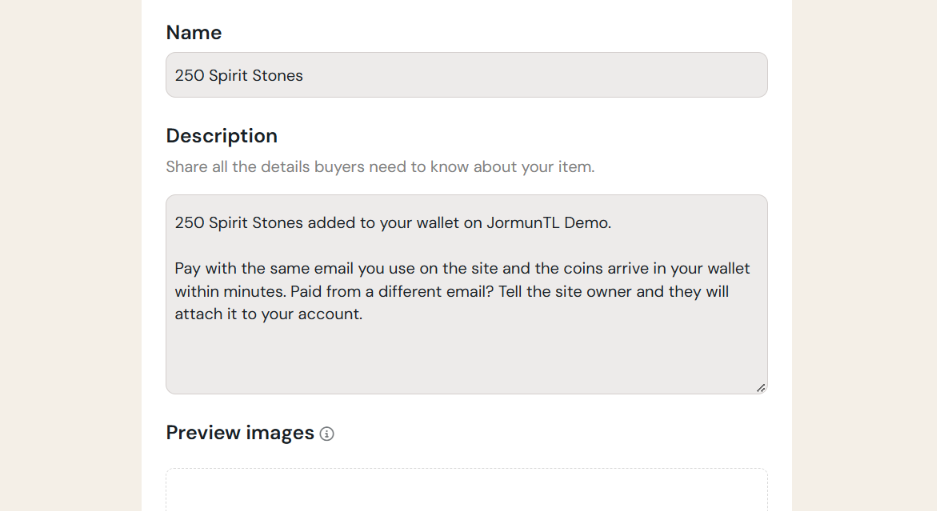
- Product summary: “250 Spirit Stones for your wallet on your site”.
- Price: the package price exactly,
4.99. Untick “Pay what you want” so the figure stays fixed. - Assets: choose Redirect buyer to a URL rather than uploading a file,
and paste the Shop item return URL shown on the Ko-fi card under
Monetization ▸ Settings (it looks like
https://your-site.com/wallet/?kofi_return=1). It is the same URL for every package. The buyer lands back in their wallet, which tells them the coins are on their way.
- Variants: none. Each package is its own item; a variant would credit the same package. Embed media and categories: skip.
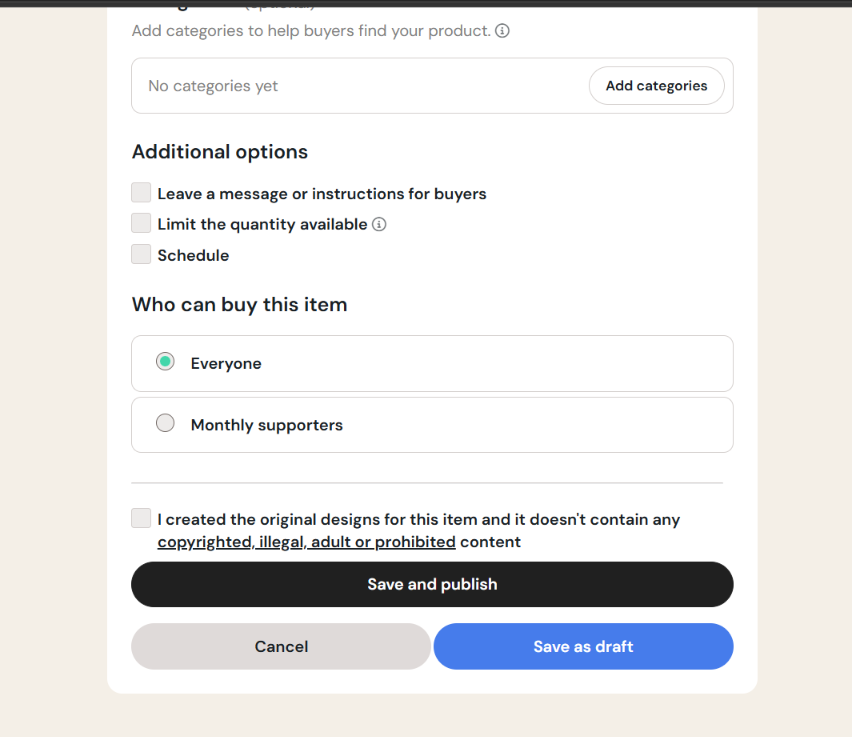
- Additional options: leave unticked, so the quantity is unlimited. “Leave a message” is optional: “Paid from a different email than your account? Tell the site owner and they will attach it.”
- Who can buy: Everyone. Tick the original-designs box. Save and publish.
- Ko-fi opens the published item. Copy its link from the address bar, or
from its Share button:
https://ko-fi.com/s/xxxxxxxxxx. - Back on your site, under Coins & Unlock, paste that link into the
package’s Ko-fi item box and save. Only the code after
/s/is kept, and the row now reads “Shop item, $4.99”.
For the other packages, repeat with only the name and the price changed; the return URL is the same each time.
Then under Coins & Unlock, paste the link into that package’s Ko-fi item box (the column shows only while Ko-fi is switched on). Only the code is kept. The wallet now sends readers of that package straight to the item; packages without one keep the tip page. The Ko-fi card’s status line says how many packages go through the shop.
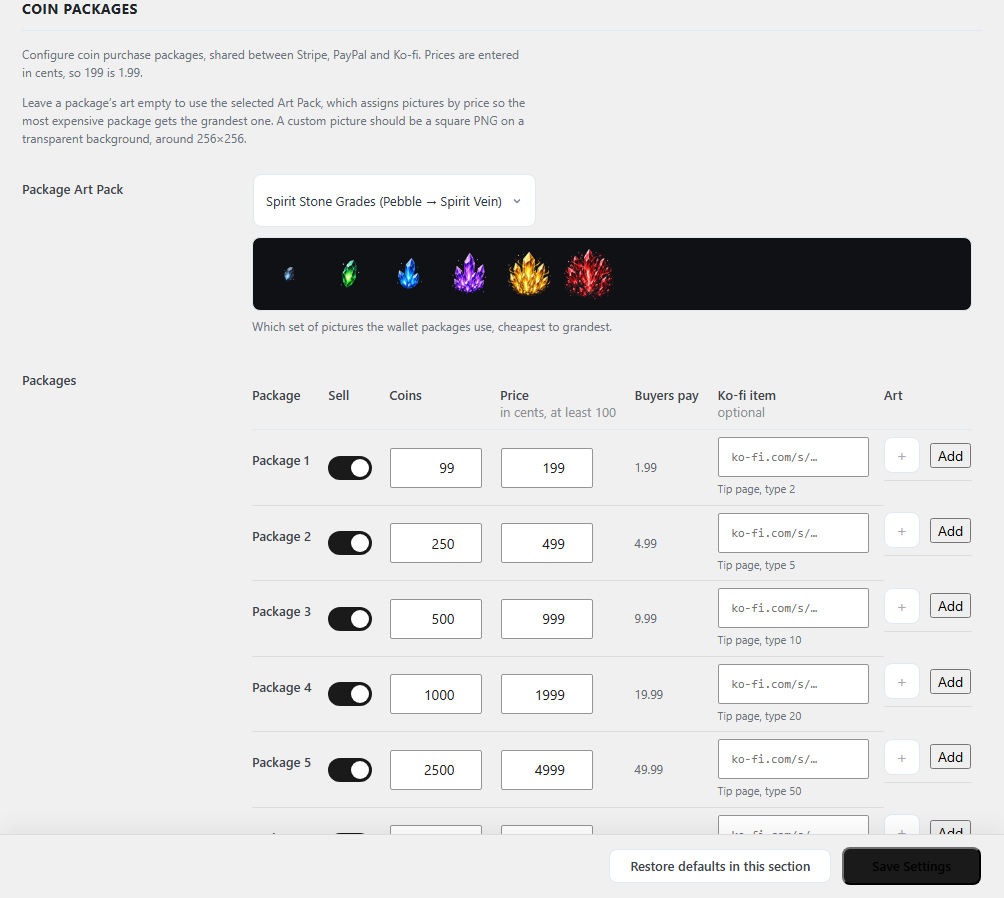
A shop order credits the package (times the quantity bought) as long as every item in the order is one of your packages and the amount covers them. An order with something else in it, or paid under the package price because the item’s price on Ko-fi drifted from the package, waits for you on Transactions.
Verification Token and the webhook URL both come from Ko-fi’s own webhook settings page. The token is how your site knows a message really came from Ko-fi and not from somebody who guessed the URL.
Because Ko-fi payments arrive from Ko-fi rather than from a signed-in reader, some of them cannot be matched to an account: a supporter who paid with a different email, or who has no account on your site at all. Those land at the top of Monetization ▸ Transactions under Ko-fi donations waiting for an account, and the Transactions menu entry shows how many are waiting. Nothing is lost; it just waits. Three ways a waiting payment gets credited:
- Credit, when an account uses the paying address (the reader registered after paying, say).
- Repair, when none does: it opens the payment beside a searchable table of your readers; pick the right one and credit them, and say what the payment is worth if the site could not price it (another currency). This is you saying who paid, so it is recorded under your name and the paying address is emailed where its money went. A reader reporting a missing payment can quote the reference from their Ko-fi receipt; it matches the message id shown on the payment.
An “anonymous” or private tip is only hidden on Ko-fi’s public feed; the webhook still carries the payer’s email, which for a PayPal payment is the PayPal account’s address. That is the usual reason a payment waits.
If a payment you know was made is not there, it never reached the site: check the webhook URL and token on Ko-fi’s side, and use Ko-fi’s “Send test”.
What a tip is worth: the exact price of a package, or the whole-dollar figure the wallet asked for, buys that package. A little over (up to 5%) still buys it. More than that buys the dearest packages the amount covers, and the change is paid at the least generous rate on your shelf, so an odd amount never beats buying the packages one by one. An amount under the minimum, or in another currency, or a Ko-fi membership, waits for you on Transactions.
Going live
- Check Settings ▸ General: both address fields must begin
https://if the site has a certificate. Every URL WordPress builds starts from there; a webhook sent to anhttp://address meets a redirect and stops, silently. The gateway cards hand out https URLs regardless and say so when the setting lags, but fix the setting. - Enter the live keys.
- Turn Test Mode or Sandbox Mode off.
- Buy the smallest package once with a real card.
- Refund it in the gateway’s own dashboard.
Step 4 is where refunds happen for everything, not only for this test. JormunTL has no refund button on purpose, because the money is not in JormunTL.
Something here wrong or missing? jormundevtl@gmail.com
Privacy ·